
PaperSave 7 style eMail notification - Per Item
For notification style defined as "Per Item", you will receive the email notification in the following format. The email notification subject includes the Workflow name and Workflow ID.
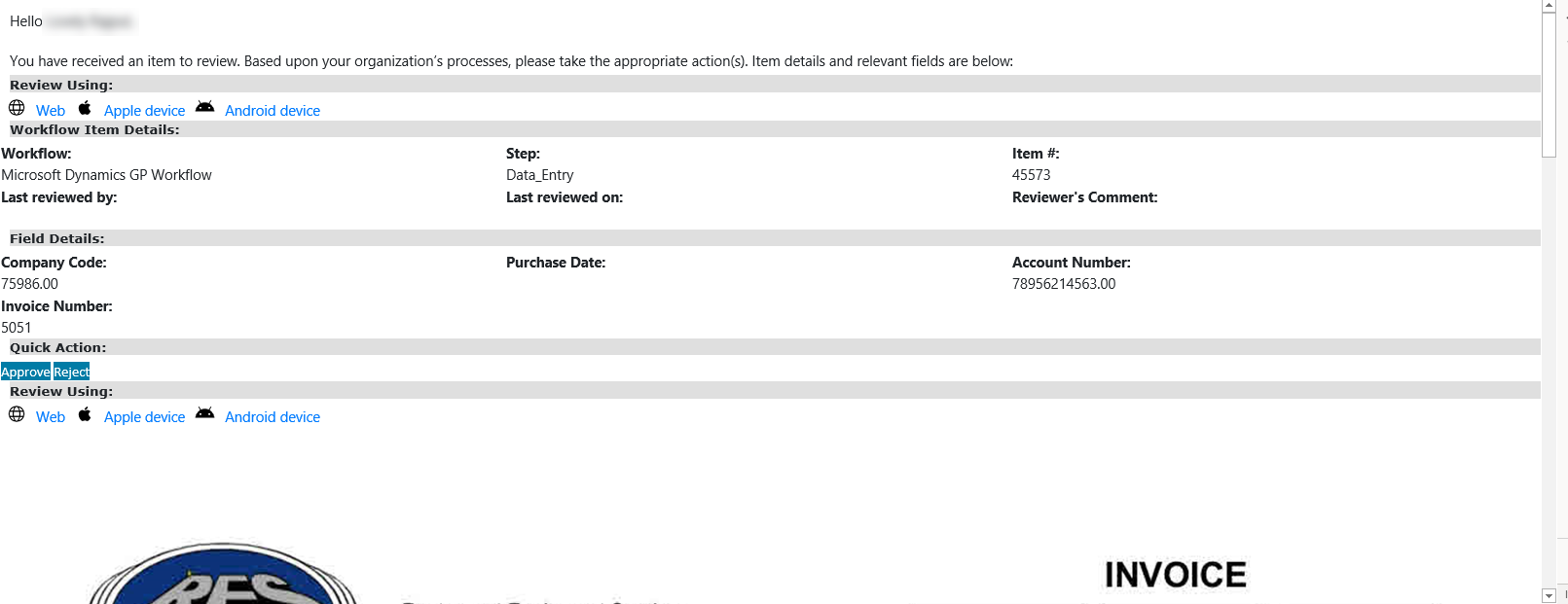
The email for Per Item notification style is divided into the following sections:
1) Workflow Item Details: This section displays details such as Workflow name, current step of Workflow item, Workflow ID, last reviewer’s name last review date and Reviewer's comments.
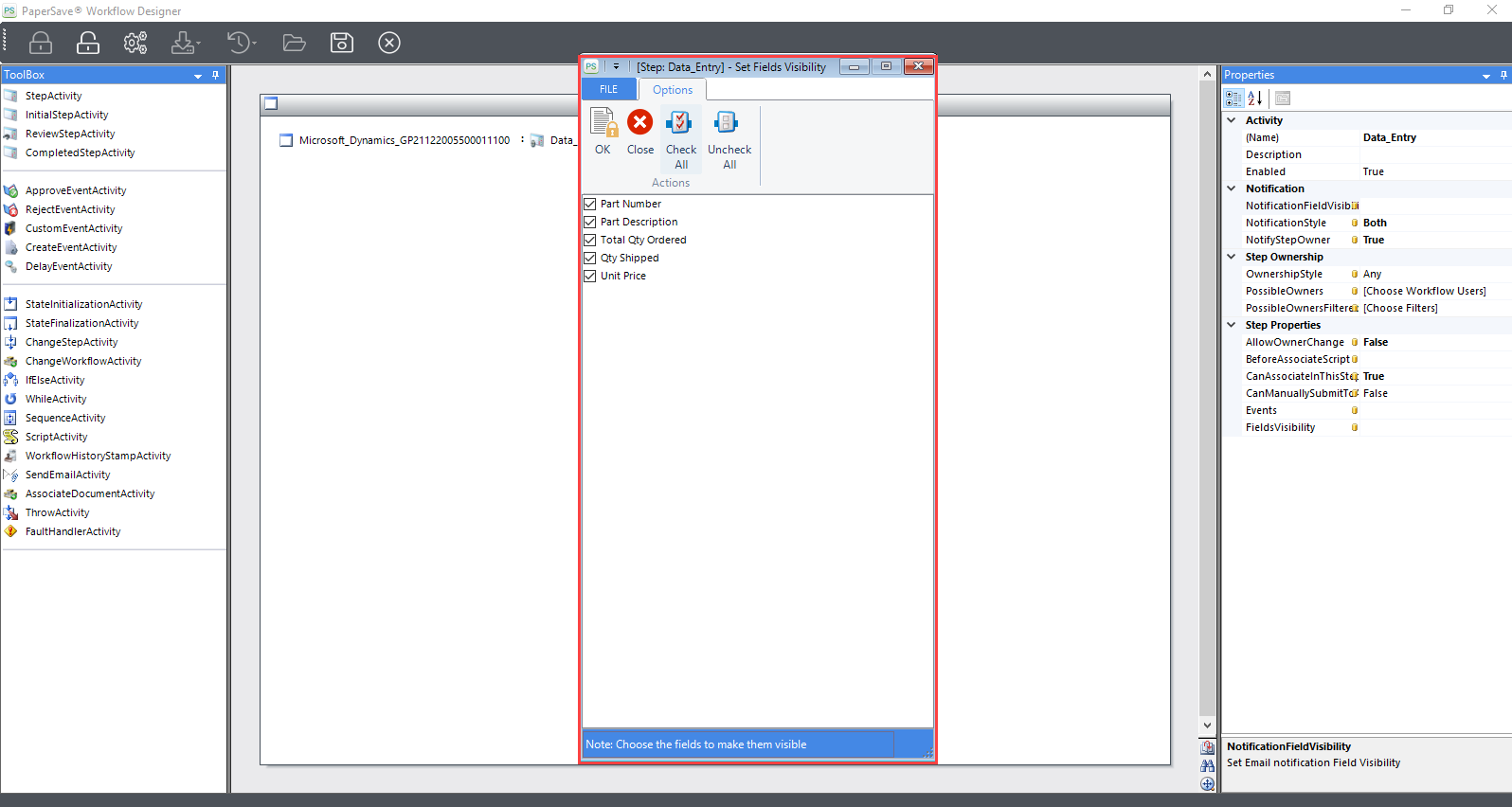
2) Field Details: This section includes the Workflow fields selected from the NotificationFieldVisibility field in the Notification section from the properties of Workflow designer as shown in the below screen:
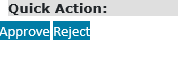
3) Quick Action: This section allows you to directly raise the Workflow event from the email. On clicking the event, it will navigate you to a web browser where you can enter the comment for the Workflow item. The events displayed in this section are configured in the Fields Details.
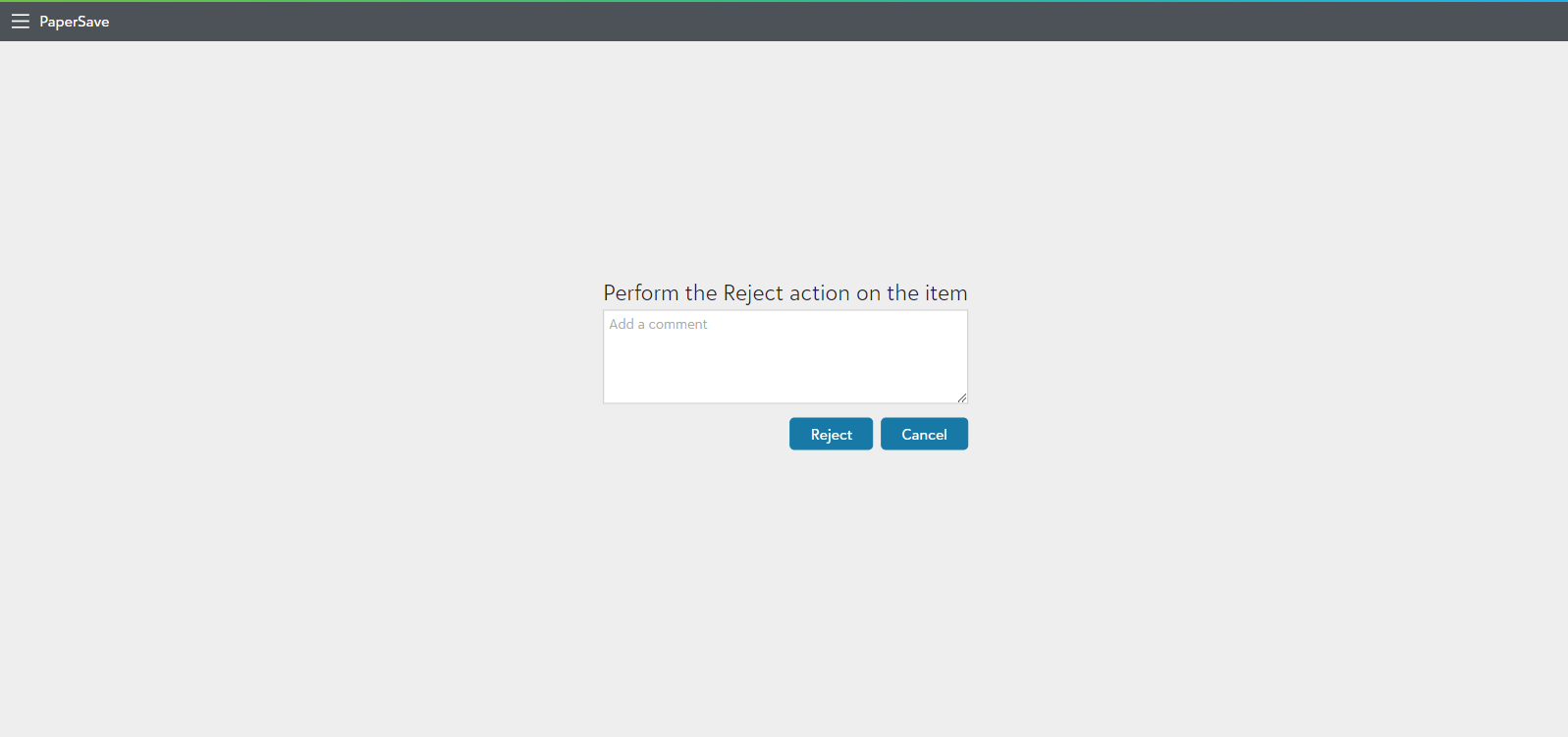
- When you raise any event for an item, then it will redirect you to PaperSave screen as shown below. Here, you can enter the comment and click on Approve to approve the item or on Cancel to exit the PaperSave without raising an event.
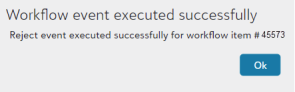
- When any event is raised successfully, a success message will appear as shown below. Click on Ok to close the message.
4) Review Using: This section provides you the following three ways to review the Workflow item received in the email. You can click on the review hyperlink to view the Workflow item in respective PaperSave application variant.

- Web (review the item in a browser)
- Apple device (review the item in PaperSave iOS application)
- Android device (review the item in PaperSave Android application)